Google Consent Mode V2 changed how GA4 and Google Ads handle users who decline cookie consent — and if you haven't updated your implementation, you're likely losing conversion data, running remarketing campaigns with gaps, and sitting outside of Google's requirements for EEA traffic. This guide explains what V2 actually changed, what the two implementation modes mean for your analytics, and what you need to do to get compliant and get your data back.
What Is Google Consent Mode?
Google Consent Mode is a framework that lets your website communicate user consent choices — made via a cookie banner — directly to Google's tags. Instead of simply blocking or allowing tags based on consent, Consent Mode tells Google tags how to behave depending on what the user has and hasn't agreed to.
When a user declines analytics cookies, Consent Mode doesn't just silence your GA4 tag — it instructs GA4 to fire without cookies, sending a limited, anonymous signal. Google can then use that signal for modeling: estimating what those non-consenting users likely did, based on the behavior of similar consenting users.
This is the core value proposition of Consent Mode: you stay privacy-compliant, and Google fills in what's missing with statistical modeling rather than leaving you with a blank spot in your data.
What Changed in Consent Mode V2
The original Consent Mode had four parameters that covered analytics and ad storage broadly. V2 added two new advertising-specific parameters that Google now requires for EEA traffic:
| Parameter | Controls | Version Added |
|---|---|---|
analytics_storage |
GA4 cookies, session data, and measurement | V1 |
ad_storage |
Google Ads cookies (GCLID, conversion tracking) | V1 |
functionality_storage |
Functional cookies (preferences, language) | V1 |
personalization_storage |
Personalization cookies | V1 |
ad_user_data ⬅ NEW |
Whether user data can be sent to Google for advertising purposes | V2 |
ad_personalization ⬅ NEW |
Whether data can be used for remarketing and personalized ads | V2 |
The two new parameters matter because Google now uses them as separate gates for advertising features. Without ad_user_data and ad_personalization being properly set, Google Ads remarketing won't function for users who declined consent, and conversion data will have gaps for that audience.
If your site is still running the original four-parameter implementation, you're on V1 — and for any Google Ads campaigns targeting EEA users, that's no longer sufficient.
Basic Mode vs. Advanced Mode: A Critical Difference
Consent Mode V2 can be implemented in two ways, and the difference significantly affects how much data you recover. Most teams don't realize they're in Basic Mode — and that's costing them GA4 accuracy.
Basic Consent Mode
In Basic Mode, Google tags will not fire unless consent is in a granted state. No data is sent — not even an anonymous ping — unless consent is explicitly granted. Importantly, this doesn't always require user interaction with the banner. Consent can be set to granted by default for regions where explicit consent isn't legally required, allowing tags to fire freely from page load. For regions like the EEA where default must be denied, tags remain blocked until a user actively accepts. Either way, the rule is simple: no explicit permission, no tag firing.
Basic Mode delivers the least data in privacy-sensitive markets. Non-consenting users are completely invisible — no events, no sessions, no conversion signals. Behavioral modeling in GA4 is not available. GA4 reports will systematically undercount traffic and conversions in any market where a meaningful share of users decline.
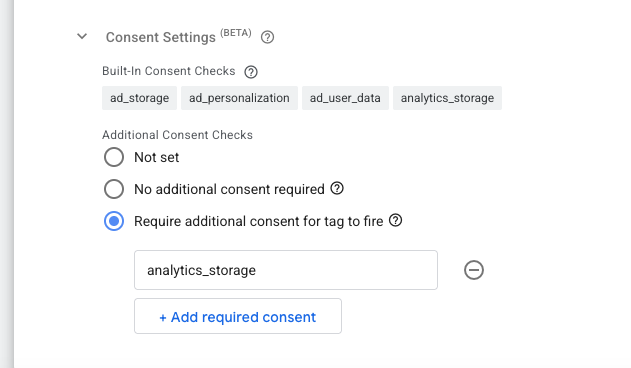
analytics_storage requirement. This setup ensures the tag won't fire at all unless analytics consent is granted — useful when you want strict control beyond the default built-in behavior.Advanced Consent Mode
In Advanced Mode, Google tags always fire — they don't wait for a granted state. Instead, they adjust their behavior based on whatever the current consent signal is. When consent is denied, GA4 and Google Ads tags fire in a restricted, cookieless mode: no cookies are written, no PII is transmitted, and only anonymous pings are sent. When consent is granted, they fire in full mode. The same tag fires either way — consent state determines how, not whether.
The critical advantage: Google tags natively understand consent state. You don't need to manually configure GA4 or Google Ads tags to block or restrict based on consent — they read the consent parameters and adjust their behavior automatically. This actually makes Advanced Mode easier to manage than Basic Mode for Google's own tags, once proper sequencing is in place.
Those anonymous cookieless pings are what enable behavioral modeling in GA4. Google's machine learning uses the pattern of non-consenting pings (time on site, pages visited, device type) to estimate what those users likely did in full. That modeled data is blended into your standard GA4 report totals — your numbers will look more complete, but they include Google's estimates for non-consenting users, not purely observed data.
To qualify for GA4 behavioral modeling, your property must: have consent mode enabled across all pages, collect at least 1,000 daily events with analytics_storage='denied' for 7+ days, and have at least 1,000 daily users sending events with analytics_storage='granted' over the prior 28 days. Properties below these thresholds won't see modeled data — but proper Advanced Mode implementation gets you there faster.
Basic vs. Advanced Mode: Comparison
| Basic Mode | Advanced Mode | |
|---|---|---|
| How it works | Tags only fire if consent is granted — either by default or by user action. No tag fires in a denied state. | Tags always fire, but adjust behavior based on consent signal. Denied = cookieless restricted mode. Granted = full tracking. |
| Setup complexity | Requires manual consent checks on each tag to block until consent is granted | Google tags (GA4, Google Ads) handle consent automatically — no manual configuration needed |
| Data from non-consenting users | None — those users are invisible | Anonymous cookieless pings sent; used for modeling |
| GA4 behavioral modeling | ❌ Not available | ✅ Available (once volume thresholds are met) |
| GA4 report accuracy | Systematically undercounts traffic in privacy-sensitive markets | More complete — non-consenting users are estimated via modeling |
| Best for | Sites with non-Google tags that don't support native consent; strict "no data before consent" policies | Most sites — especially those running paid media or relying on GA4 for decisions |
The bottom line: if you're using Google's native tags and want the most complete picture of your traffic, Advanced Mode is the right choice — and it's less manual work for those tags once your CMP is correctly sequenced. Basic Mode makes sense when you have non-Google tags that require custom blocking logic, or when your legal or compliance team requires a strict "no data before consent" posture.
Is Consent Mode V2 Mandatory?
For EEA traffic, yes — with real consequences. Google required all advertisers running Google Ads or using Google's advertising features for users in the European Economic Area to implement Consent Mode V2 by March 2024. The requirement stems from the IAB Transparency & Consent Framework and Google's own EU User Consent Policy.
What happens if you don't comply for EEA users? Google Ads stops serving remarketing and personalized ad campaigns to non-consenting users. You're effectively flying blind on a significant portion of your European traffic — and depending on your CMP setup, you may also be at risk under GDPR for improper cookie handling.
For businesses primarily serving US audiences: Consent Mode V2 isn't legally required today, but it's still worth implementing. Privacy regulations are expanding (CCPA, state-level US laws, and more), and the modeling benefits — recovering signal from users who opt out — apply regardless of geography. We recommend treating V2 as the baseline implementation for any new setup.
What Consent Mode V2 Means for Your GA4 Data
If you've looked at your GA4 reports and wondered why session counts seem low or why certain segments look thin — Consent Mode implementation is often the cause. Here's what's happening at the data level:
Without Consent Mode (or with Basic Mode and no consent granted): Non-consenting users are invisible. GA4 sees no events, no sessions, no behavior from that segment. If 40% of your European traffic declines cookies, you're working from 60% of the picture.
With Advanced Consent Mode properly implemented: GA4 receives cookieless pings from non-consenting users. These pings don't identify users or write cookies, but they do include session-level signals. Google's modeling fills in the gaps. Your session counts more accurately reflect actual traffic, and your conversion reports include modeled conversions alongside observed ones.
In standard GA4 reports, modeled data is blended into your totals — it is not broken out or labeled separately. What you see in most reports is a combined figure that includes both observed and modeled sessions or conversions. This is worth understanding: your numbers will look more complete than in Basic Mode, but the totals reflect Google's estimates for non-consenting users, not purely observed data.
How to Implement Consent Mode V2 (The Right Way)
The recommended implementation path uses a Google-certified Consent Management Platform connected to Google Tag Manager. Here's how the pieces fit together:
Step 1: Choose a Google-Certified CMP
Your CMP is the cookie banner and consent logic layer — it surfaces the consent UI, stores user preferences, and communicates consent signals downstream. Google maintains a list of CMPs that have certified integrations with their consent framework. Common options include Cookiebot, OneTrust, Usercentrics, and Didomi. Your CMP must support Consent Mode V2 with all six parameters, including the two new V2 additions.
If your current cookie banner was set up before 2024, verify with your provider that it's been updated for V2. Many older implementations only pass the original four parameters, which means you're running V1 even if you think you're compliant.
Step 2: Deploy Your CMP in GTM via Consent Initialization
In Google Tag Manager, your CMP tag must use the Consent Initialization trigger — a special trigger type that fires before all other triggers, including All Pages. This ensures the CMP sets consent defaults in the dataLayer before any Google tags attempt to fire. Your CMP integration typically provides a GTM template or tag for this purpose.
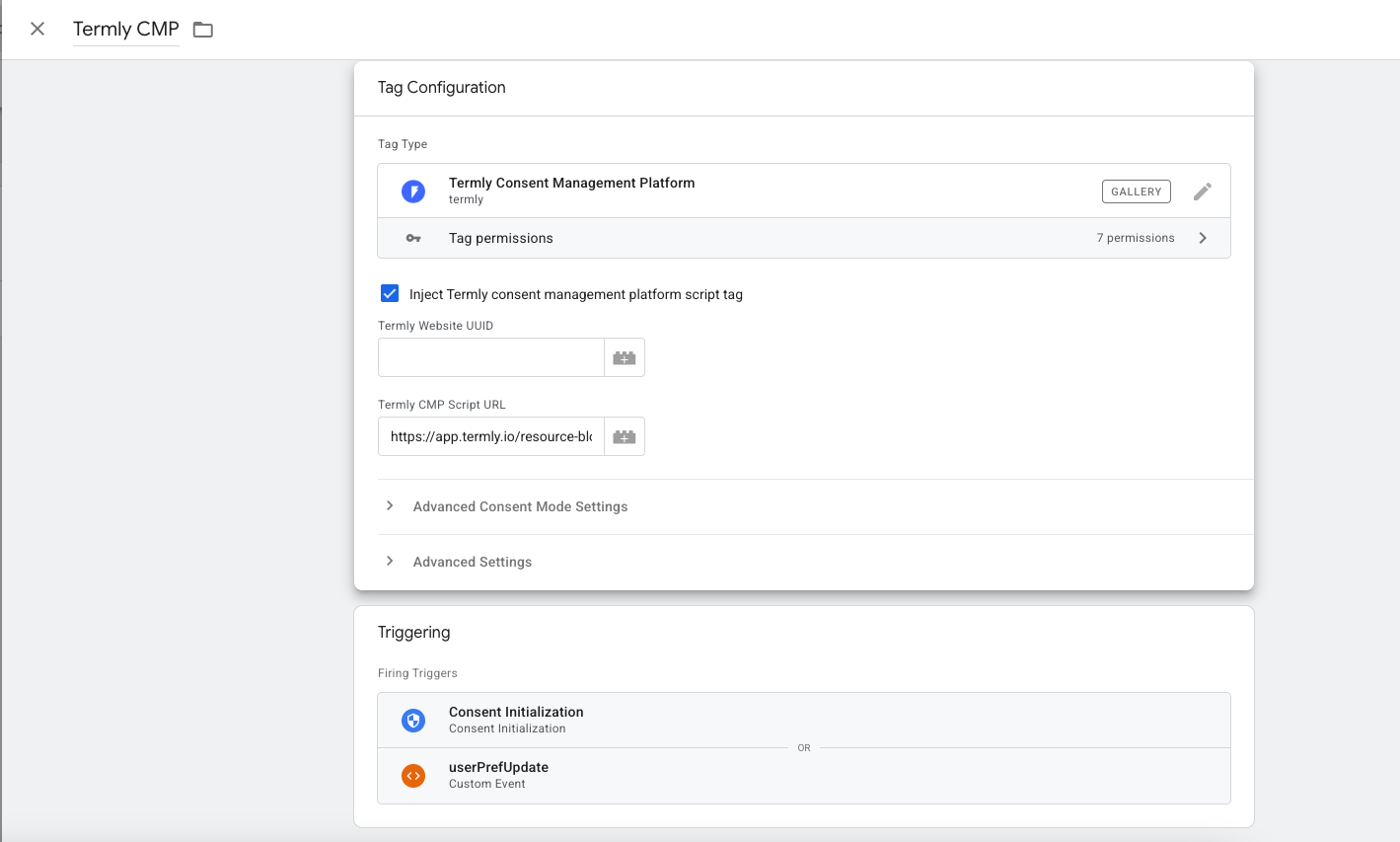
Step 3: Update Pageview Tags to Fire After Consent Update
Your GA4 and Google Ads pageview tags should be configured to fire after the consent state has been set — not before. In GTM, this means setting these tags to use a trigger that respects the consent initialization sequence. The CMP fires first (via Consent Initialization), sets the consent state, and then your measurement tags fire with that state already in place. This sequencing is what allows Google tags to read the correct consent signal from the moment they load.
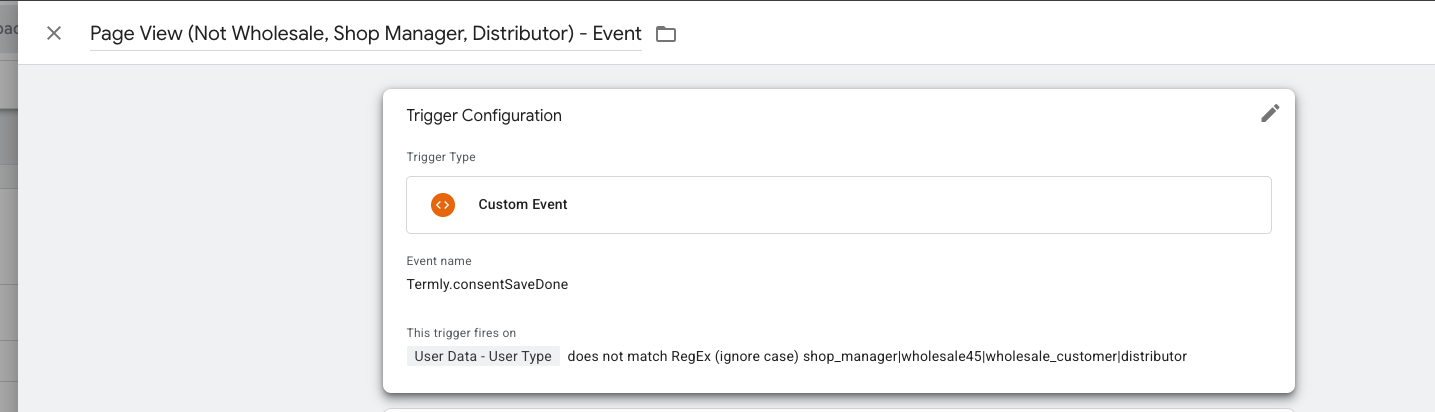
Termly.consentSaveDone ensures pageview tags fire only after the user has made a consent selection — not before. The user type condition excludes internal roles from tracking.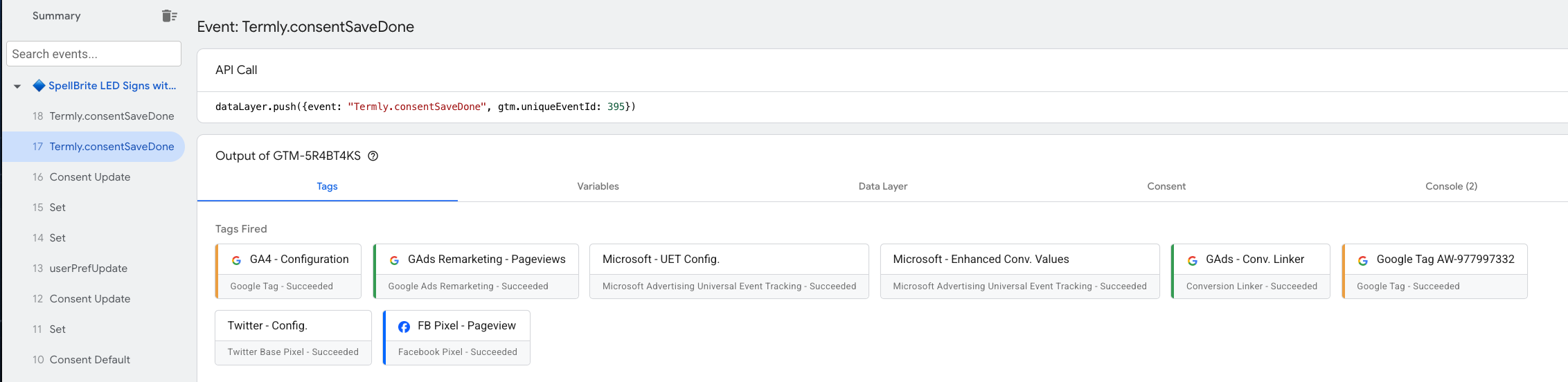
Termly.consentSaveDone event — only after the user has given consent.Step 4: Verify Google Tags Read Consent Automatically
This is where Advanced Mode earns its reputation for being simpler: Google's native tags automatically adhere to consent state. Your GA4 configuration tag and Google Ads conversion tags read the consent parameters set in Step 2 and adjust their behavior without any manual intervention. If consent is denied, they fire in cookieless restricted mode. If consent is granted, they fire normally. You don't need to add consent checks, blocking triggers, or conditional logic to each individual tag.
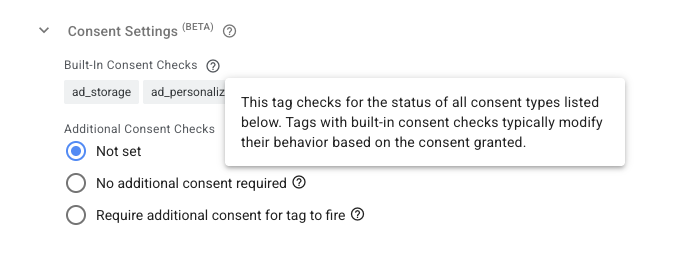
ad_storage and ad_personalization. The "Not set" selection for Additional Consent Checks means the tag relies entirely on its built-in checks — which is typical for most Google tags.The one exception: if you have legacy Google Ads tags built before Consent Mode V2 was released, they may not support the two new parameters (ad_user_data and ad_personalization). Rebuild those from current GTM templates and the new parameters will be wired automatically.
Step 5: Test Before You Publish
Use GTM Preview mode to verify the sequence of events: consent initialization fires first, default denied state is set, the consent banner appears, and the consent state updates after user interaction. Check that GA4 fires in restricted mode for denied states and in full mode for granted states.
Google Tag Assistant and the GA4 DebugView are both useful for confirming that events are firing with the correct consent context. Also check that the ad_user_data and ad_personalization parameters are present and updating correctly — their absence is the most common V2 compliance gap we see.
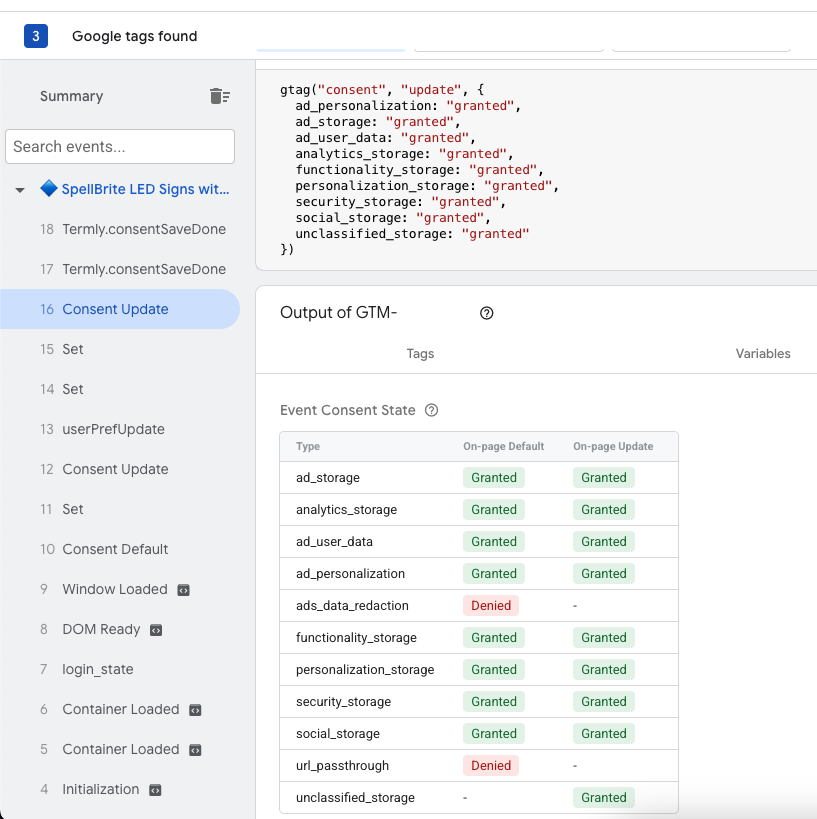
A cookie banner that looks correct on the surface can still be misconfigured underneath. The most common failure mode: the CMP fires after GA4 instead of before it, meaning the first pageview is always sent without consent being checked. Don't assume — verify in Preview mode.
Common Consent Mode V2 Mistakes
Using Advanced Mode when Basic is actually the right fit. Advanced Mode is the right choice when you're running Google's native tags — GA4 and Google Ads — because those tags handle consent state automatically. But if your stack includes non-Google tags that don't natively understand consent signals, Advanced Mode can result in those tags firing in ways you didn't intend. Basic Mode's explicit blocking approach is safer in those cases, since tags won't fire at all without a granted state.
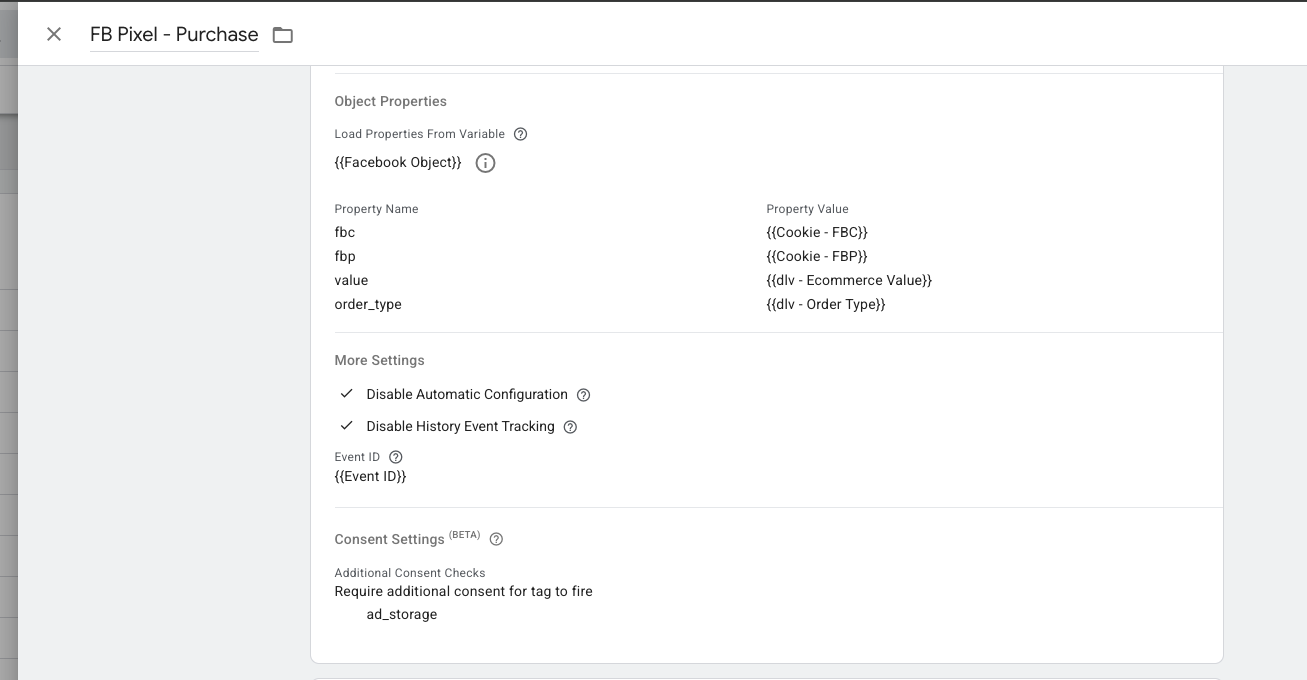
ad_storage, meaning the tag won't fire unless the user has granted ad consent. Non-Google tags always need this kind of explicit consent gate.Using a CMP that isn't Google-certified. Not all cookie banners are built equal. Some set cookies without sending proper signals to GTM. If your CMP isn't on Google's certified CMP partner list, the consent signals may not be flowing to your tags correctly — even if the banner itself looks and functions fine on the surface.
Not updating tag sequencing after adding Consent Mode. The most common failure mode we see: the CMP fires after GA4 instead of before it, meaning the first pageview is always sent without consent being checked. The CMP tag must use the Consent Initialization trigger in GTM to guarantee it fires before all other tags. Verify this in GTM Preview mode — don't assume.
Not deploying the cookie banner across the entire site. GA4 behavioral modeling requires Consent Mode to be active on every page. Partial implementation — common when a banner is added to new page templates but not legacy ones — disqualifies the property from modeling and creates inconsistent consent signals across sessions. Audit every page type, not just the homepage.
Consent Mode V2 and Server-Side Tagging
If you're running or planning server-side GTM, Consent Mode adds a layer of consideration. Consent signals originate in the browser (where the user interacts with the banner), and they need to reach the server container before server-side tags fire.
The recommended approach is to enforce consent mode on the client side first, then pass the consent state as part of the event payload to the server container. The server container reads the consent state and applies the same logic — only forwarding data to vendors the user has consented to. This gives you the strongest possible compliance posture: consent is enforced at both the browser and server layers.
Implementing this correctly requires careful coordination between your CMP, client-side container, and server-side container. It's one of the areas where we see the most implementation gaps — and where a consent management implementation done properly from the start saves significant cleanup later.
Frequently Asked Questions
For businesses running Google Ads or using Google Analytics for users in the European Economic Area (EEA), Consent Mode V2 is required. Google made it a condition of continued access to remarketing features for EEA traffic in March 2024. For businesses outside the EEA, it is technically not mandated today — but implementing it is still best practice as privacy regulations expand globally and the modeling benefits apply everywhere.
Consent Mode V1 had four parameters: analytics_storage, ad_storage, functionality_storage, and personalization_storage. V2 added two new advertising-specific parameters: ad_user_data (controls whether user data can be sent to Google for advertising purposes) and ad_personalization (controls whether data can be used for remarketing and personalized ads). These two new parameters are required for Google Ads remarketing to function correctly for non-consenting users.
In Basic Mode, Google tags only fire when consent is in a granted state — no data is sent otherwise. Consent can be granted by default (for regions where explicit opt-in isn't required) or by user action; the key is that without a granted state, tags don't fire at all. In Advanced Mode, Google tags always fire but adjust their behavior based on the consent signal: denied triggers restricted cookieless mode, granted triggers full tracking. Advanced Mode enables GA4 behavioral modeling because tags fire (in restricted mode) even for non-consenting users, giving Google enough signal to model their behavior.
Yes, through modeling — not through collecting their actual data. When you implement Advanced Consent Mode, Google's machine learning estimates the behavior of non-consenting users based on patterns from similar consenting users. For GA4, behavioral modeling fills in traffic and engagement estimates. That modeled data is blended into standard report totals — not broken out separately.
The recommended approach is to use a Google-certified Consent Management Platform (CMP) that has a native GTM integration. The CMP handles the consent UI, stores user preferences, and pushes the correct consent signals to GTM via the dataLayer before any Google tags fire. In GTM, you add the Consent Initialization trigger type to your consent signal tags so they fire before all other tags. Your GA4 and Google Ads tags then read the consent state and adjust their behavior automatically.

Not Sure If Your Consent Mode Is Set Up Correctly?
A misconfigured Consent Mode implementation looks fine on the surface — but costs you data every day. Get a free assessment of your current setup.
Get a Free Assessment